Your first project: from idea to task
In ten minutes you will create a project, add your first ideas, problems and tasks and invite your team. From then on 2Sync is the home of your whole product backlog.
Create a project
A project in 2Sync is a product or an area of work: a website, a mobile app, an internal service. Each project has its own backlog, feedback inbox, roadmap, CJM and wiki.
Open your organization page from the left menu (the Organization section).
In the New project box enter a key and a name. The key, 2–10 Latin letters, becomes the prefix of record numbers: APP-1, APP-2.
Click Create.
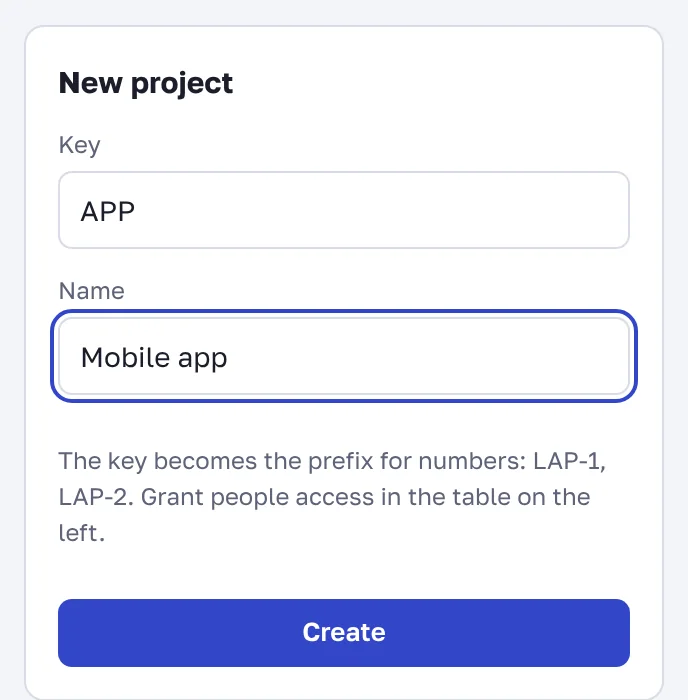
Projects are created by the organization owner. If you are a member, ask the owner to create a project and give you access.
Add your first records
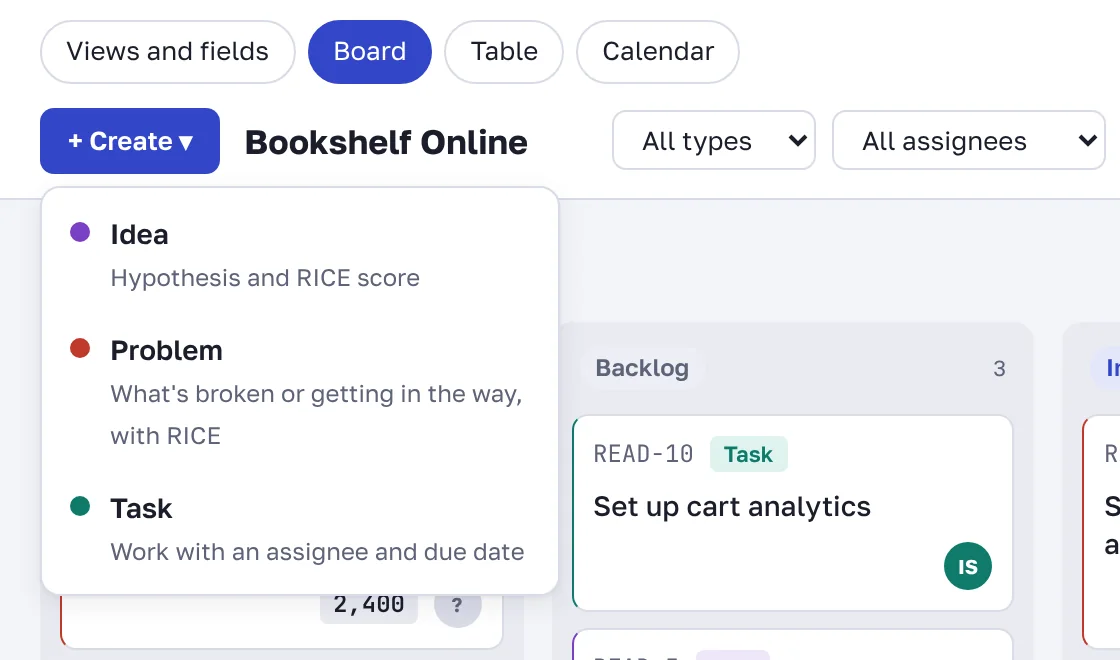
In Backlog click + Create and pick the record type:
Idea — something to improve. An idea has a hypothesis and a RICE score.
Problem — something broken or in the way of users. Also scored with RICE.
Task — a concrete piece of work with an assignee and a due date.
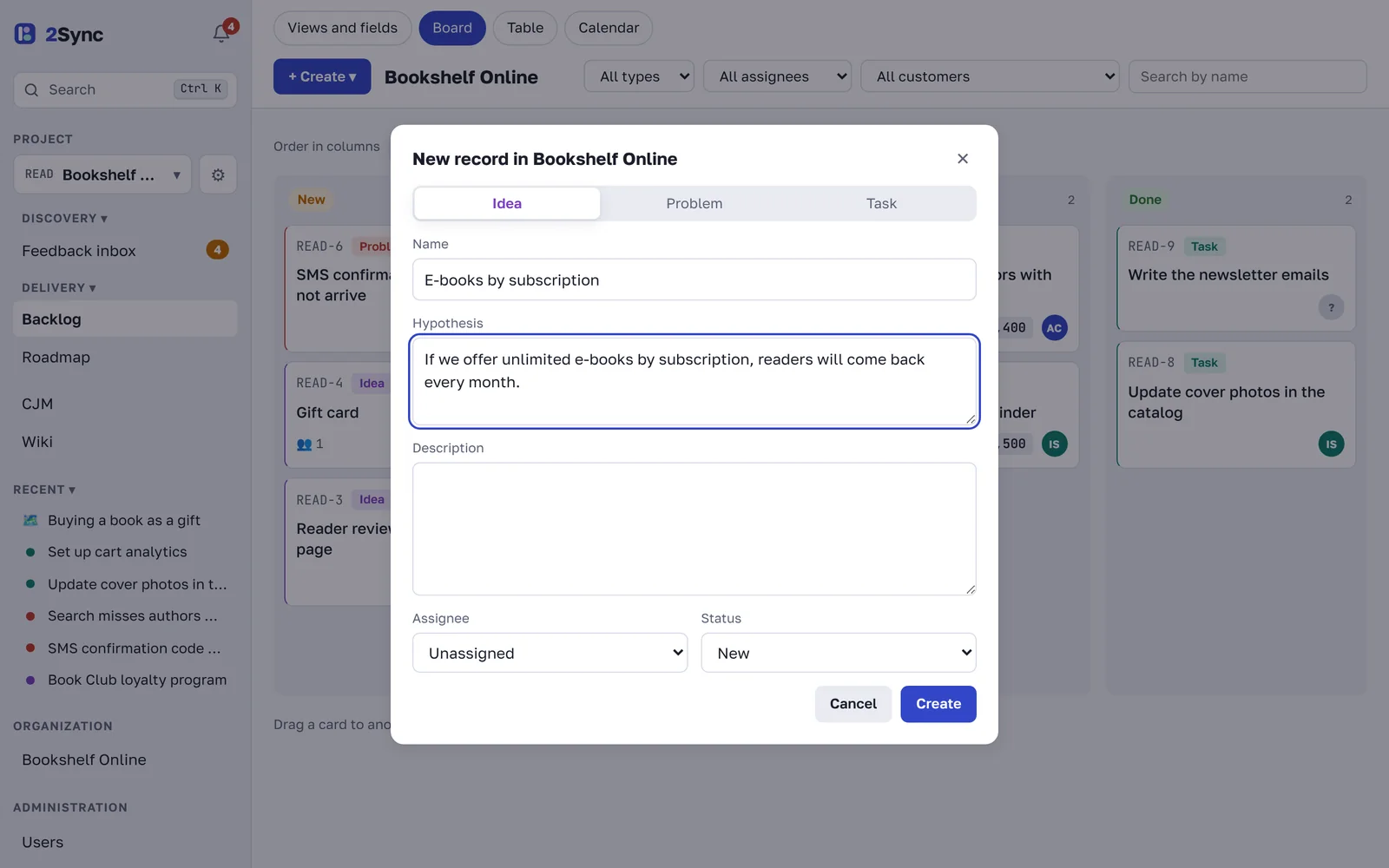
Write the hypothesis for an idea right away: "If we do …, then …, because …". A month later it will still be clear why it mattered and how to check the result.
Work on the kanban board
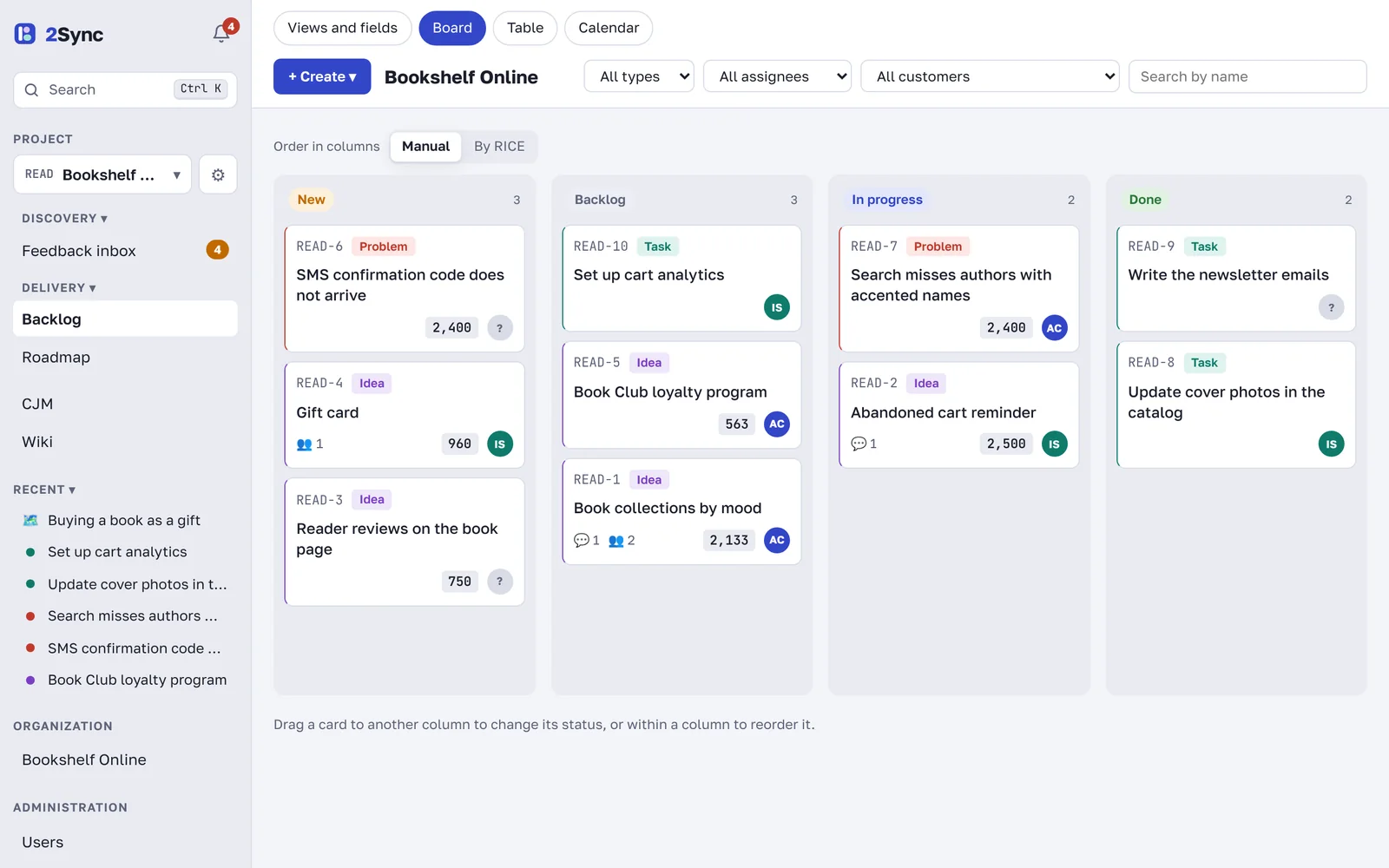
New records land in the New column. Drag cards between New, Backlog, In progress and Done to change the status, and within a column to set the order. If you prefer a list, switch to the Table tab; records with due dates show in the Calendar tab.
Open a record
The record page holds everything about it: the hypothesis and description, which customers asked for it, subtasks, files, discussion and change history. On the right are the status, assignee and RICE score.
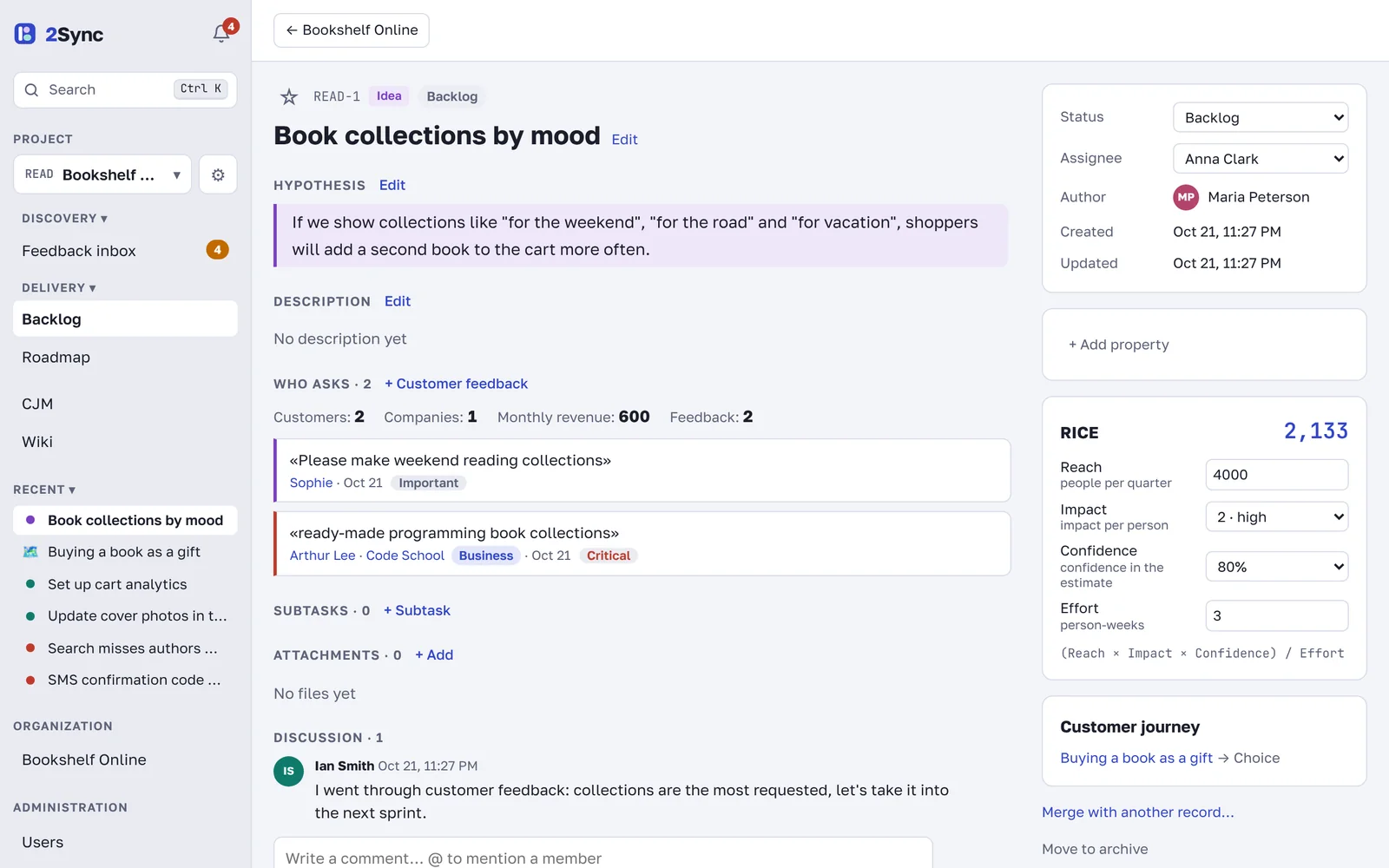
Mention teammates in the discussion with @: they get a notification in the bell, by email and by push if those are on.
Invite your team
On the organization page, in the Invite someone box, enter an email and a name. Without a password you get an invite link to send to the person. Then in the People and project access table choose which projects they can open and with which role: manager, member or viewer.
What next
Add the feedback widget to your site so ideas from customers arrive on their own.
Prioritize with RICE to decide what to do first.
Frequently asked questions
How many projects can I create?
As many as you need. Usually one project is one product or one team.
What is the difference between an idea and a task?
An idea describes what to change and why, and gets scored. A task is work that has been decided, with an assignee and a due date. You can split a big idea into subtasks right on its page.
Do members see other projects of the organization?
No. Everyone sees only the projects they were given access to. Organization owners see all of its projects.