How to add a feedback widget to your website
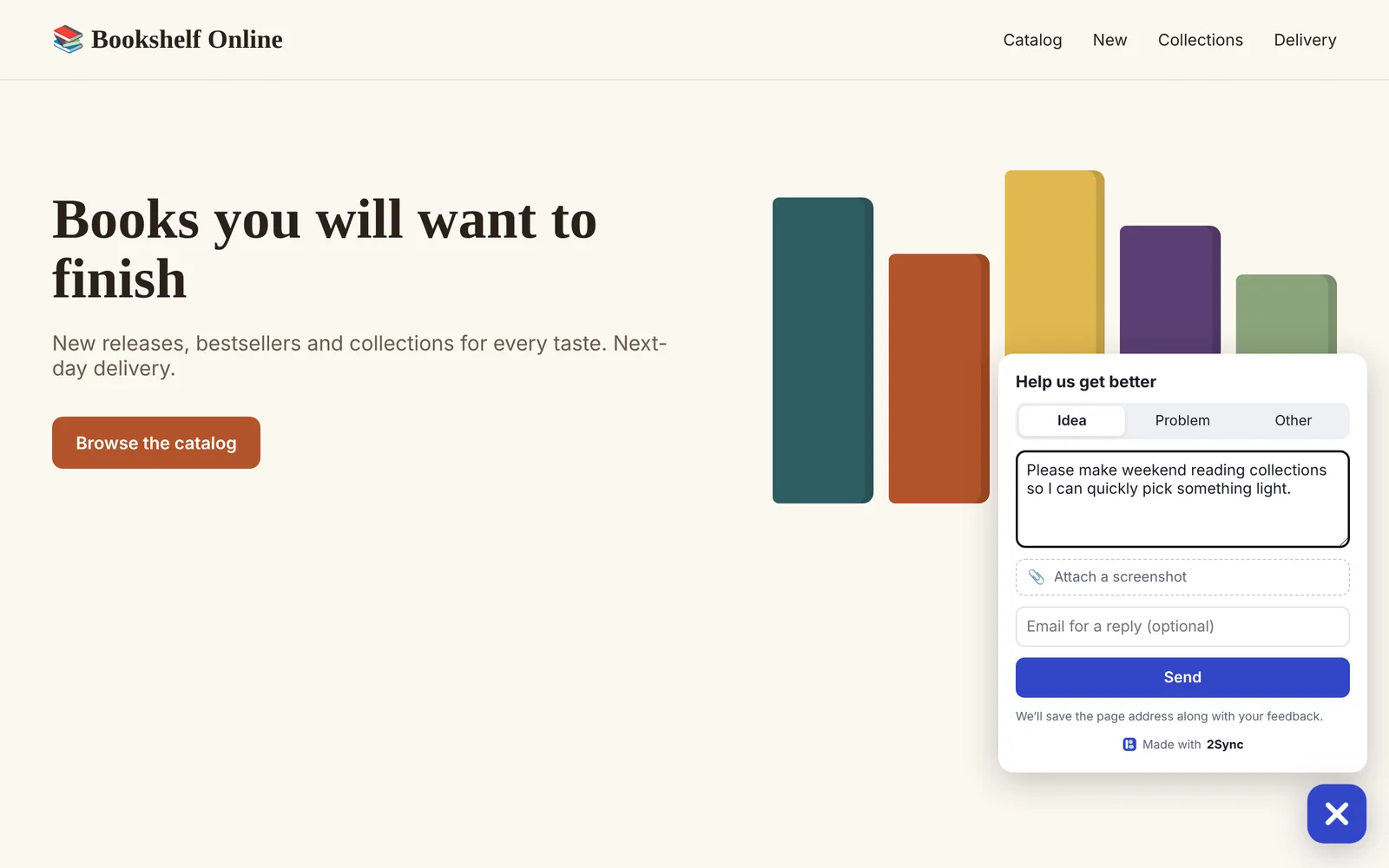
The 2Sync widget is a button in the corner of your site. A visitor clicks it, writes an idea or reports a problem, can attach a screenshot, and the feedback goes straight to your project inbox. It takes a couple of minutes to set up, no developer required.
Step 1. Add your site address
Open the project and go to Feedback inbox.
Click ⚙ Settings and open the Feedback and API tab.
In Websites we accept feedback from enter your domain, one per line, and click Save. Subdomains are allowed automatically: shop.com also lets in www.shop.com.
Until at least one site is listed, the widget will not accept feedback. This protects the project from spam sent from other pages.
Step 2. Paste the code on your site
In the Website widget box click Copy and paste the line into your site code before the closing </body> tag. Any site works: custom-built, WordPress, Webflow, Tilda or another builder where you can add your own HTML.
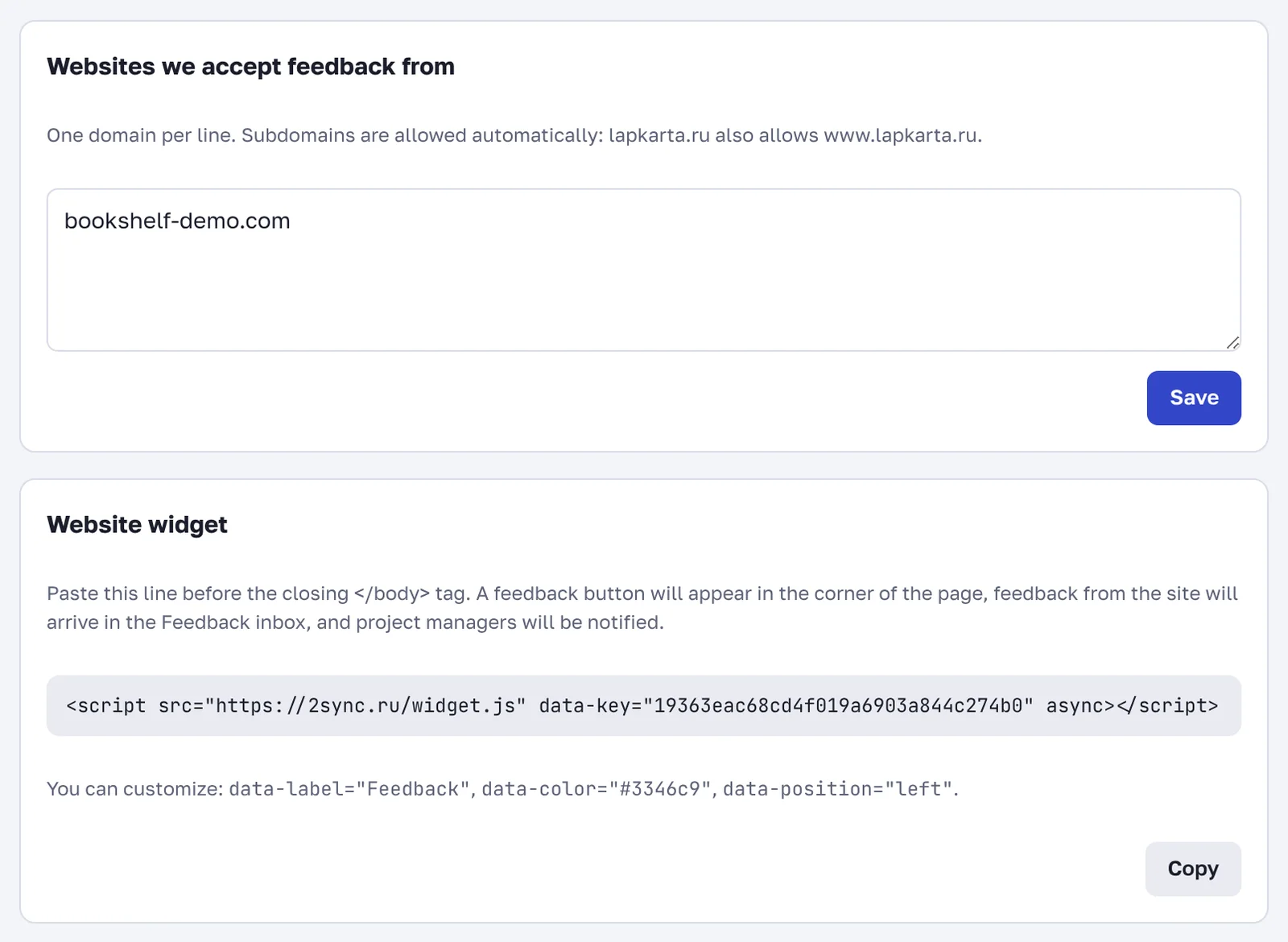
<script src="https://2sync.ru/widget.js" data-key="PROJECT_KEY" async></script>Reload your site: a light bulb button appears in the bottom right corner.
Step 3. Adjust the look (optional)
Add attributes to the line:
Attribute | What it does | Example |
|---|---|---|
| button tooltip |
|
| button color |
|
| button in the left corner |
|
| widget language: ru, en or pt |
|
Without data-lang the widget speaks the language of the page or of the visitor's browser.
Step 4. Triage feedback in the inbox
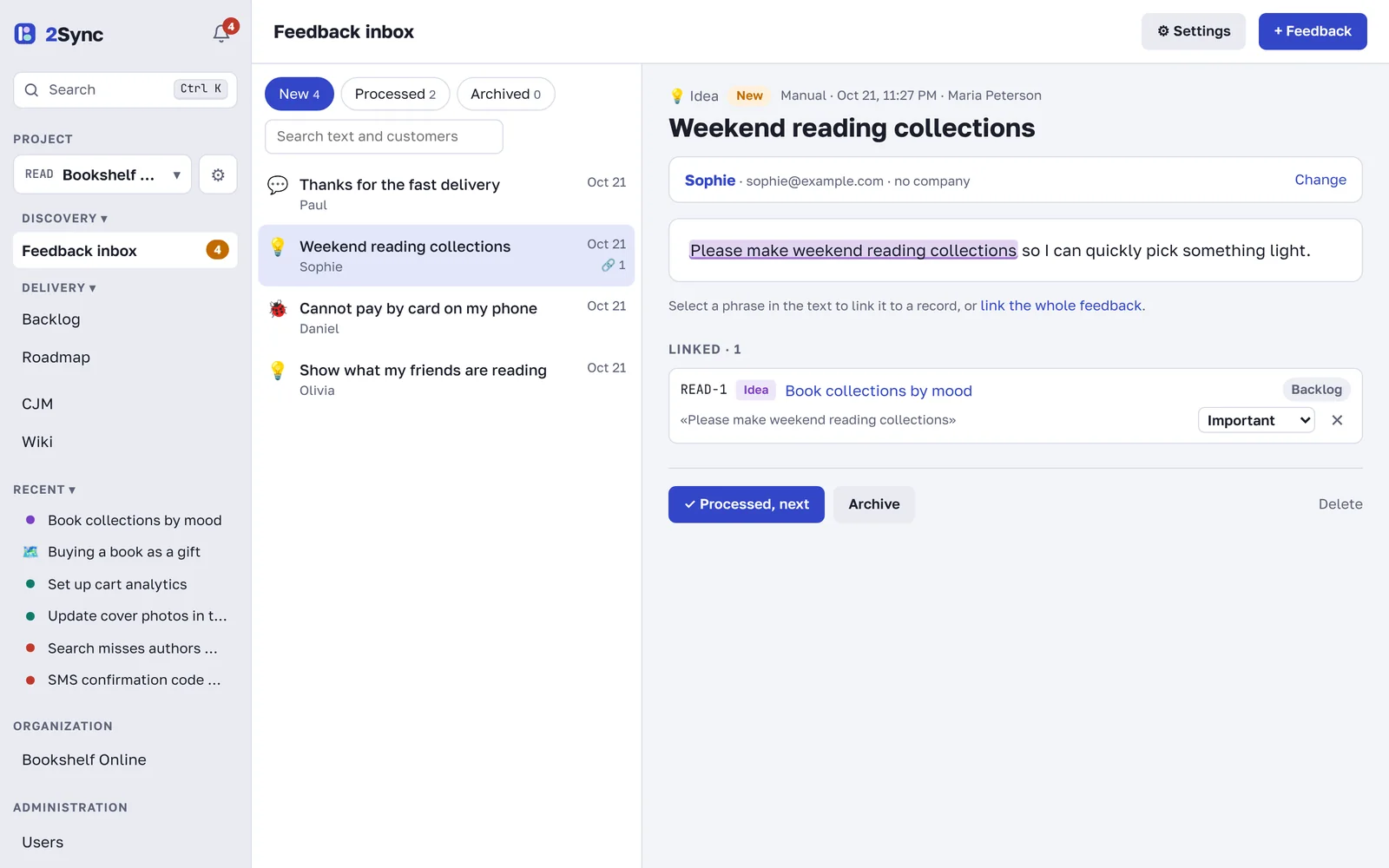
Each piece of feedback arrives in Feedback inbox with the page address, screenshot and email if the visitor left them. Project managers get a notification.
To triage a note:
Select an important phrase in the text and link it to an idea, problem or task. Or link the whole note.
Click Processed, next and move on.
This way every idea collects a list of customers who asked for it, and you can see what people really need.
Feedback from your own server
If you collect feedback in your app or chatbot, send it through the API without the widget: POST https://2sync.ru/api/public/v1/feedback with the header Authorization: Bearer <project secret>. The secret and a sample request are on the same Feedback and API tab.
Frequently asked questions
Will the widget slow down my site?
No. The script loads asynchronously and weighs a few kilobytes, so the page opens just as fast.
The button did not appear. What should I check?
Make sure the line is on every page of the site and the domain is spelled correctly in the settings. If the site also opens at another address, such as a staging domain, add that too.
Is there spam protection?
The widget accepts feedback only from the listed domains and no more than 10 notes in 10 minutes from one address.
Does a visitor need a 2Sync account?
No. The visitor just writes the feedback; the email is optional.