Processing feedback in the inbox
The feedback inbox is where everything your customers say ends up: feedback from the website widget, from the API, and what you add by hand from emails, chats and calls. Processing a piece of feedback takes a minute: highlight what matters and link it to an idea or a problem. That way every record collects a list of the customers who asked for it.
Where feedback comes from
Website widget: a visitor clicks the button and writes. See How to add the feedback widget to your website.
API: your server or chatbot sends feedback on its own.
By hand: click + Feedback and paste an email, a chat message or call notes. Set the customer so the feedback counts for them and their company.
The inbox has three tabs on the left: New, Processed and Archived. The number on the Feedback inbox menu item shows how much feedback is waiting.
Link a quote to a record
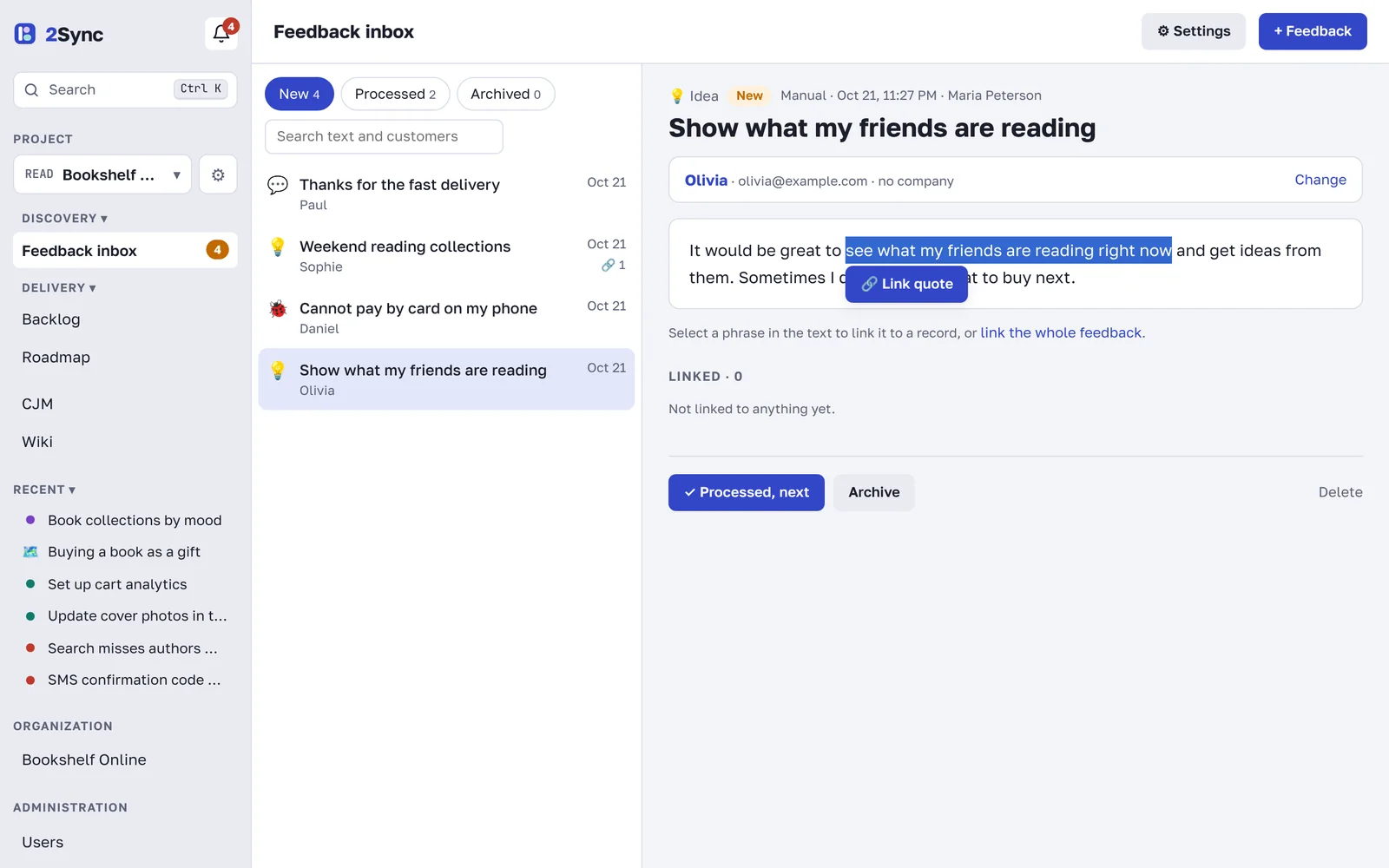
Open a piece of feedback from the list.
Select the phrase that carries the request. A 🔗 Link quote button appears next to it.
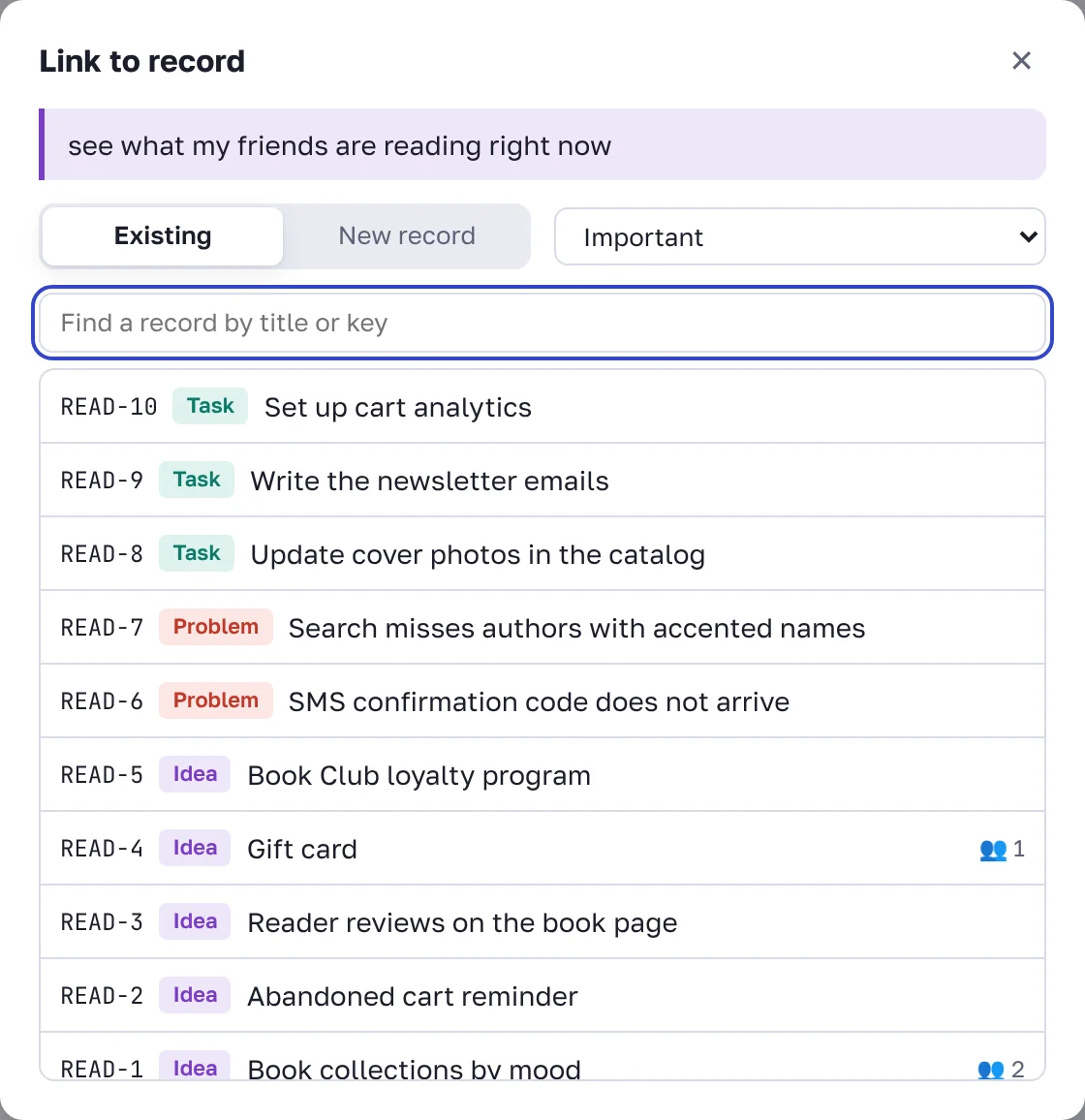
Click the button. Find an existing idea, problem or task by title or key, for example READ-4.
If there is no matching record, switch to New record, pick the type, enter a title and click Create and link.
Set how important it is for the customer: Nice to have, Important or Critical.
Short feedback can be linked as a whole: click link the whole feedback under the text.
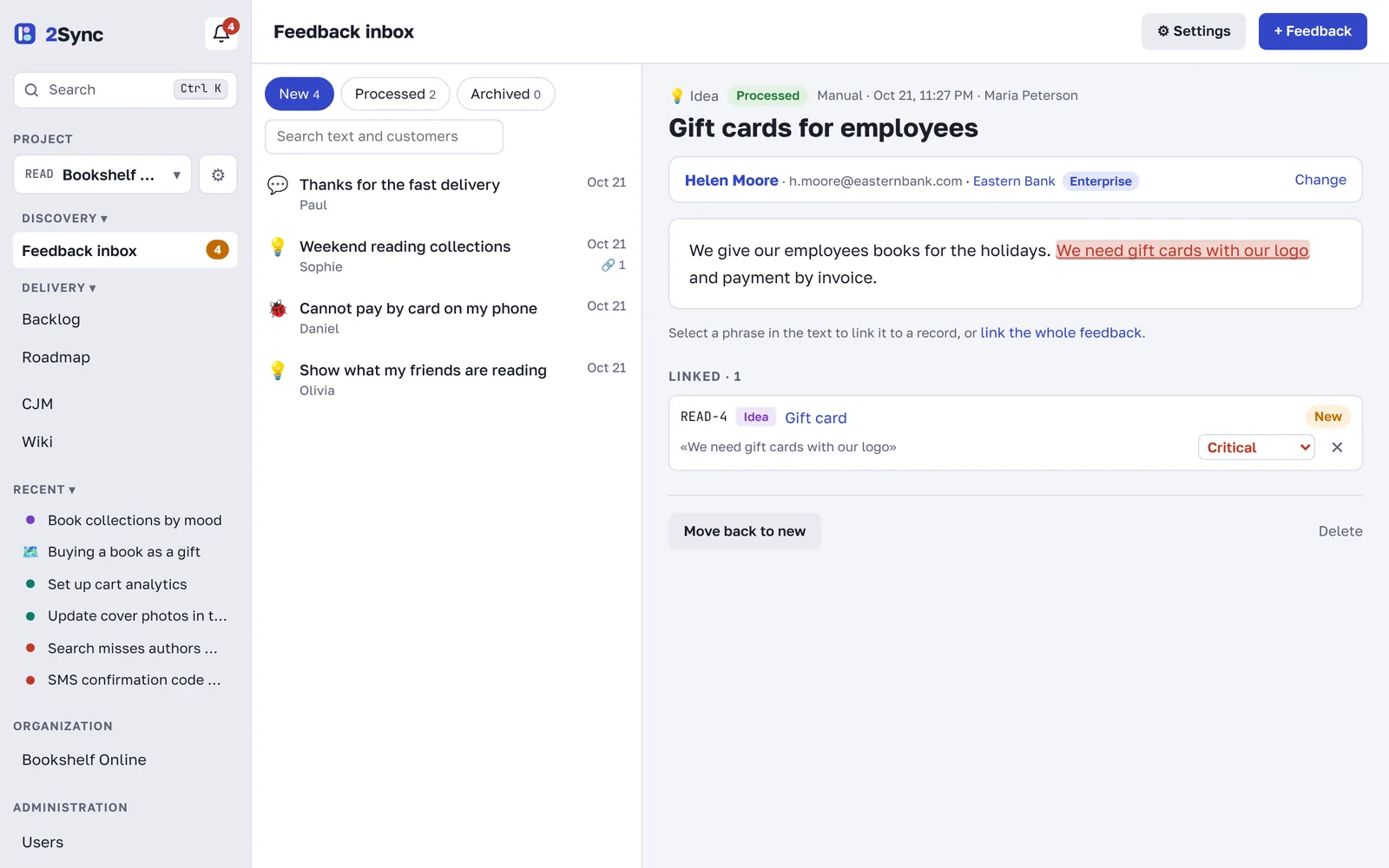
You can link the same feedback to several records when a customer asks for different things. Linked quotes are highlighted in the text and listed under Linked.
Close the feedback
When everything important is linked, click ✓ Processed, next: the feedback moves to Processed and the next one opens. Send spam and thank-you notes without requests to the Archive. Move back to new returns a piece of feedback to the queue.
What you see in the record
The idea or problem page gets a Who asks block: customer quotes, their companies, plans and importance, plus a summary of how many customers and companies asked and how much revenue they bring. See Customers, companies and demand.
Merge duplicates
If two records are about the same thing, merge them:
Open the duplicate record.
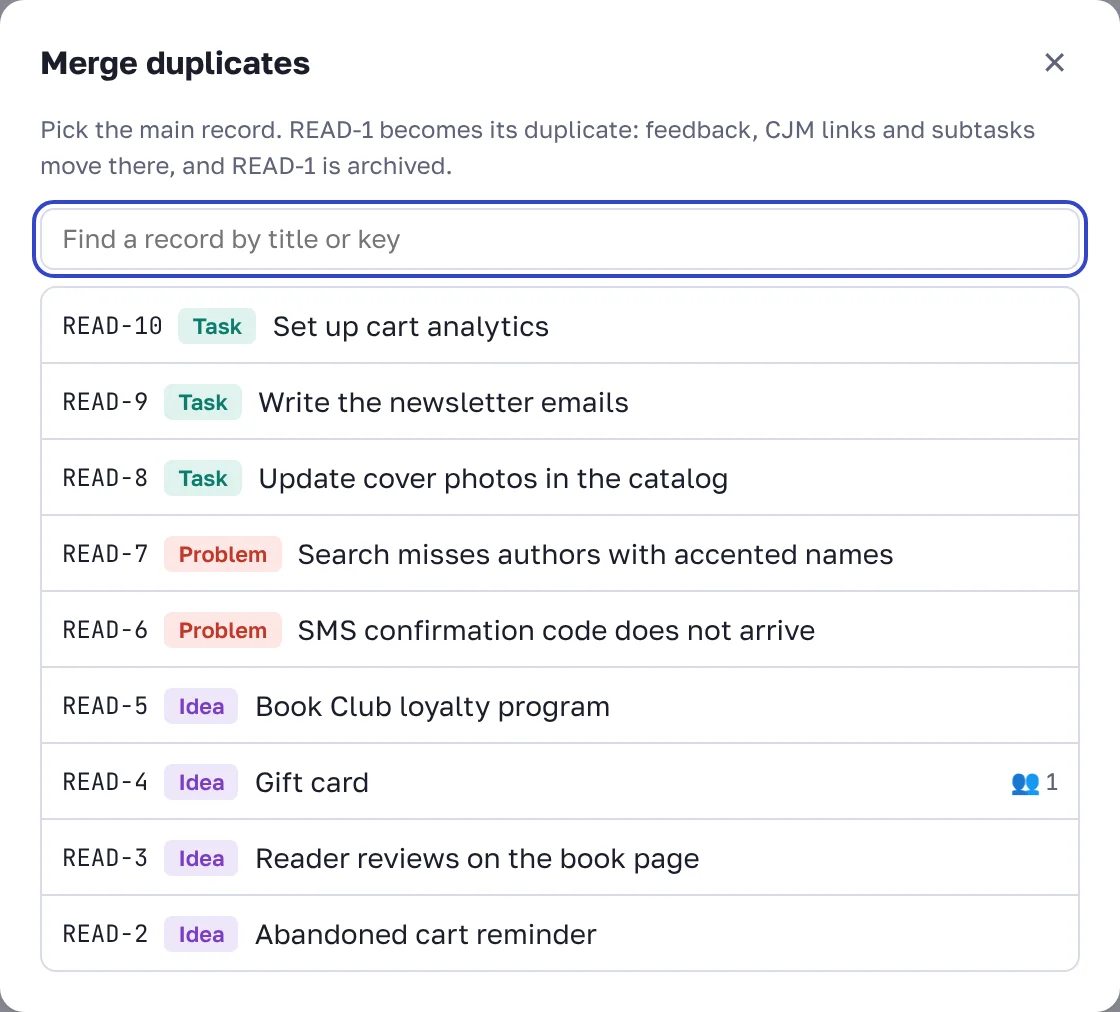
Click Merge with another record… under the blocks on the right.
Pick the main record.
Feedback, customer journey links and subtasks move to the main record, and the duplicate is archived. Both records keep a note about the merge in their history.
FAQ
Who is notified about new feedback?
Project managers. They get a bell notification, an email, and a push notification if they turned push on.
Can I delete feedback?
Yes, with Delete at the bottom of the feedback. Linked quotes disappear from records. If in doubt, archive it instead.